Azure CLI でプライベートなAKS クラスターでkubectl やコマンドを実行する
プライベートなAKS クラスターを運用している時、kubectl やシェルスクリプトを実行したい時があります。Azure CLI ではaz aks コマンドを介し、プライベートクラスターにコマンドを実行できます。今回はAzure CLI を使いプライベートなAKS クラスターにkubectl やシェルスクリプトを実行する方法について説明します。

 18 February, 2025
実施環境
| OS/ツール | バージョン |
| Azure CLI | 2.69.0 |
| Kubernetes (AKS) | 1.31.5 |
前提条件
- Azure のアカウントおよびサブスクリプションを持っている
- ローカルPC にAzure CLI がインストールされているまたはAzure CloudShell の実行環境があること
プライベートなAKS クラスターへのコマンド
AKS ではインターネットから直接接続できないプライベートなKubernetes クラスターを作成できます。プライベートなAKS クラスターはインターネットの通信を直接受け付けないため、インターネット経由で直接 kubectl やhelm のような管理コマンドを実行できません。プライベートなAKS クラスターにコマンドを実行するには以下のような方法があります。
- Azure Portal やAzure CLI のaz aks command invoke コマンドを使う
- プライベートなAKS クラスターに接続できる踏み台マシンやAzure Bastion のネイティブクライアント機能を使う
- VPN やExpressRoute のような専用線を使う
企業で既に専用線を利用していればそのまま利用できますが、AKS の管理目的で利用するには料金がかかりすぎます。踏み台マシンやBastion はAKS 以外に用途があれば良いですが、単純に接続するには料金が気になります。トラブルシューティングのためにちょっとコマンドを実行したい、という時にAKS ではAzure Portal やAzure CLI を使ってプライベートクラスターにコマンドを実行できます。また、コマンドを介してマニフェストファイルの適用やシェルスクリプトの実行も可能です。これらの機能を使うことで、運用・管理のちょっとした対応を簡単に実施できます。
今回の構成
今回はプライベートなAKS クラスターを作成し、クラスターへ単体のコマンド、マニフェストファイルの適用、スクリプトを使った複数のコマンド実行を実施します。
AKS の作成
初めにAKS 用のリソースグループとプライベートなAKS クラスターを作成します。
# リソースグループを作成する
az group create --name rg-akscommandexe --location japaneast

# プライベートなAKSクラスターを作成する
az aks create \
    --resource-group rg-akscommandexe \
    --name aks-commandexe \
    --kubernetes-version 1.31.5 \
    --enable-private-cluster
AKS の資格情報を取得
AKS を作成後、AKS クラスターの資格情報を取得します。
# AKSの資格情報を取得する
az aks get-credentials --resource-group rg-akscommandexe --name aks-commandexe
Azure CLI 経由で単一のコマンドを実行
AKS クラスターの準備後、Azure CLI でプライベートなAKS クラスターにコマンドを実行します。単体のコマンドを実行する場合、--command オプションに実行したいコマンドを文字列として入力します。
# 単体のコマンドを実行する
az aks command invoke \
    --resource-group rg-akscommandexe \
    --name aks-commandexe \
    --command "kubectl get nodes"
実行すると以下のようにノードの情報が表示されます。
kdkwakaba@TEST:~$ az aks command invoke \
    --resource-group rg-akscommandexe \
    --name aks-commandexe \
    --command "kubectl get nodes"
command started at 2025-02-17 14:54:46+00:00, finished at 2025-02-17 14:54:46+00:00 with exitcode=0
NAME                                STATUS   ROLES    AGE   VERSION
aks-nodepool1-60733051-vmss000000   Ready    <none>   38m   v1.31.5
aks-nodepool1-60733051-vmss000001   Ready    <none>   38m   v1.31.5
aks-nodepool1-60733051-vmss000002   Ready    <none>   38m   v1.31.5
Azure CLI 経由でマニフェストファイルを適用
az aks command invoke コマンドではコマンドの実行だけでなくマニフェストファイルを使いKubernetes クラスターに設定を適用できます。マニフェストファイルを渡すには --file オプションでファイルを転送し実行します。今回はNginx Pod のDeployment を作成するマニフェストファイルを適用します。--file オプションで渡したファイルはRoot のファイルで渡されます。
apiVersion: apps/v1
kind: Deployment
metadata:
  name: nginx-deployment
spec:
  replicas: 2
  selector:
    matchLabels:
      app: nginx
  template:
    metadata:
      labels:
        app: nginx
    spec:
      containers:
      - name: nginx
        image: nginx:latest
        ports:
        - containerPort: 80
# AKSクラスターにマニフェストファイルを適用する
az aks command invoke \
    --resource-group rg-akscommandexe \
    --name aks-commandexe \
    --command "kubectl apply -f deployment.yaml" \
    --file ./deployment.yaml
実行後、Deployment が作成されたことを確認します。
kdkwakaba@TEST:~$ az aks command invoke \
    --resource-group rg-akscommandexe \
    --name aks-commandexe \
    --command "kubectl apply -f deployment.yaml" \
    --file ./deployment.yaml
command started at 2025-02-17 15:03:26+00:00, finished at 2025-02-17 15:03:26+00:00 with exitcode=0
deployment.apps/nginx-deployment created

kdkwakaba@TEST:~$ az aks command invoke \
    --resource-group rg-akscommandexe \
    --name aks-commandexe \
    --command "kubectl get deployment"
command started at 2025-02-17 15:05:57+00:00, finished at 2025-02-17 15:05:57+00:00 with exitcode=0
NAME               READY   UP-TO-DATE   AVAILABLE   AGE
nginx-deployment   2/2     2            2           2m31s
Azure CLI 経由でシェルスクリプトを実行
プライベートなAKS クラスターに対し複数のコマンドを実行したい場合、シェルスクリプトを転送し実行することができます。今回は簡単なHelm コマンドをまとめたシェルスクリプトを転送して実行します。
#!/bin/bash

# Helmリポジトリを追加
helm repo add stable https://charts.helm.sh/stable
helm repo update

# 設定のインストール
helm install my-nginx stable/nginx-ingress
# シェルスクリプトを実行する
az aks command invoke \
    --resource-group rg-akscommandexe \
    --name aks-commandexe \
    --command "sh ./install.sh" \
    --file install.sh
実行するとHelm コマンドが実行されます。今回は外部のネットワークに接続する手段を作成していないためヘルスチェックでエラーとなりますが、シェルスクリプトの実行は確認できます。
kdkwakaba@TEST:~$ az aks command invoke \
    --resource-group rg-akscommandexe \
    --name aks-commandexe \
    --command "sh ./install.sh" \
    --file install.sh
command started at 2025-02-17 15:13:40+00:00, finished at 2025-02-17 15:13:53+00:00 with exitcode=0
"stable" has been added to your repositories
Hang tight while we grab the latest from your chart repositories...
...Successfully got an update from the "stable" chart repository
Update Complete. ⎈Happy Helming!⎈
WARNING: This chart is deprecated
NAME: my-nginx
LAST DEPLOYED: Mon Feb 17 15:13:52 2025
NAMESPACE: default
STATUS: deployed
REVISION: 1
TEST SUITE: None
NOTES:
*******************************************************************************************************
* DEPRECATED, please use https://github.com/kubernetes/ingress-nginx/tree/master/charts/ingress-nginx *
*******************************************************************************************************


The nginx-ingress controller has been installed.
It may take a few minutes for the LoadBalancer IP to be available.
You can watch the status by running 'kubectl --namespace default get services -o wide -w my-nginx-nginx-ingress-controller'

An example Ingress that makes use of the controller:

  apiVersion: extensions/v1beta1
  kind: Ingress
  metadata:
    annotations:
      kubernetes.io/ingress.class: nginx
    name: example
    namespace: foo
  spec:
    rules:
      - host: www.example.com
        http:
          paths:
            - backend:
                serviceName: exampleService
                servicePort: 80
              path: /
    # This section is only required if TLS is to be enabled for the Ingress
    tls:
        - hosts:
            - www.example.com
          secretName: example-tls

If TLS is enabled for the Ingress, a Secret containing the certificate and key must also be provided:

  apiVersion: v1
  kind: Secret
  metadata:
    name: example-tls
    namespace: foo
  data:
    tls.crt: <base64 encoded cert>
    tls.key: <base64 encoded key>
  type: kubernetes.io/tls

kdkwakaba@TEST:~$ az aks command invoke \
    --resource-group rg-akscommandexe \
    --name aks-commandexe \
    --command "kubectl get pods"
command started at 2025-02-17 15:21:34+00:00, finished at 2025-02-17 15:21:34+00:00 with exitcode=0
NAME                                                      READY   STATUS             RESTARTS      AGE
my-nginx-nginx-ingress-controller-7f6cfb64b4-r2d4q        0/1     CrashLoopBackOff   6 (27s ago)   7m41s
my-nginx-nginx-ingress-default-backend-598f74ff8f-f8zzs   1/1     Running            0             7m41s
Azure Portal からコマンドを実行
AKS クラスターへコマンド実行はAzure Portal から実行することもできます。対象のAKS クラスターを選択後、左ペインの Run command を選択し、実行するコマンドを実行します。
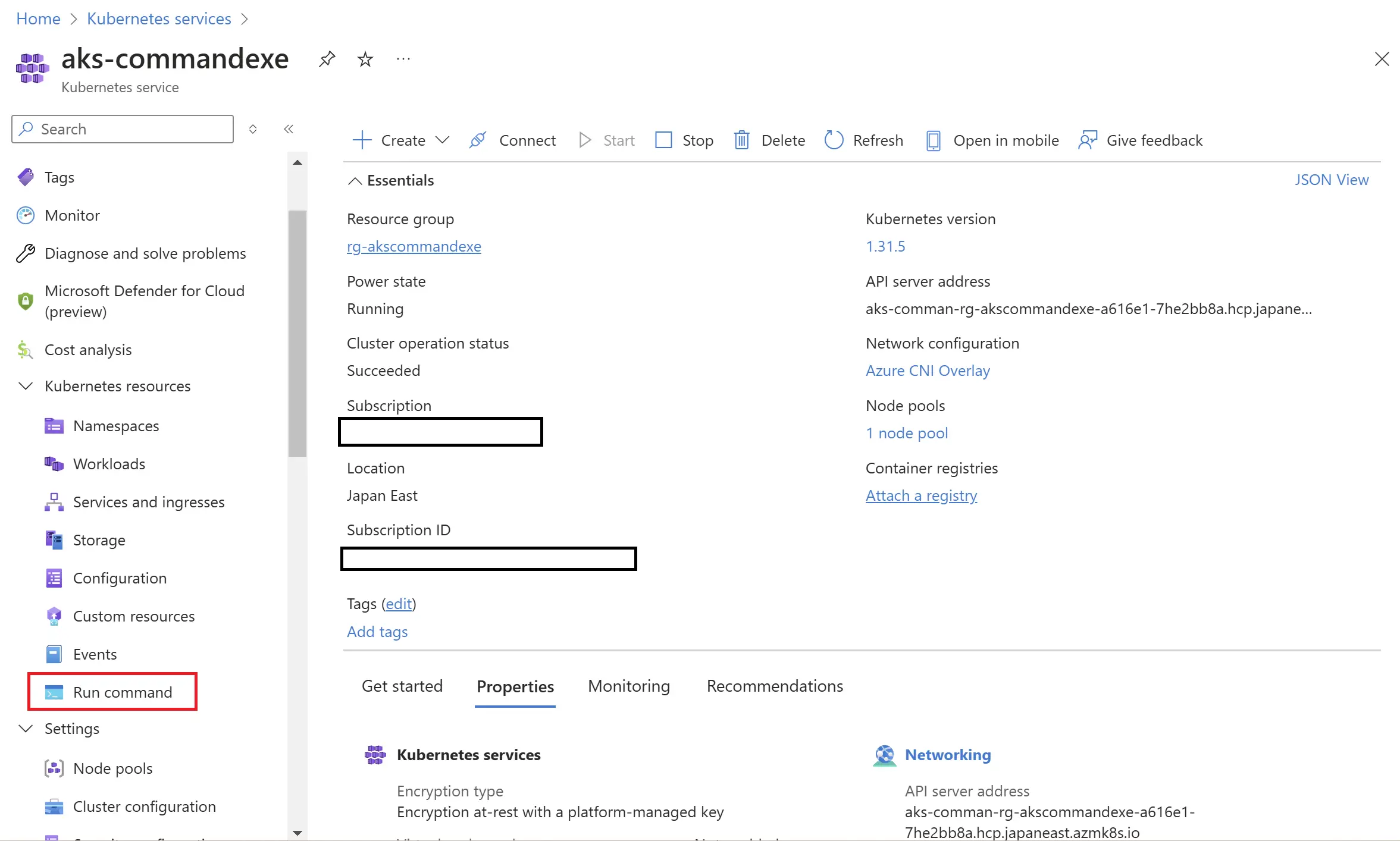
選択後、下の入力欄に実行したいコマンドを入力します。画像例では kubectl get nodes を入力しています。

コマンドを入力し実行すると実行結果が表示されます。
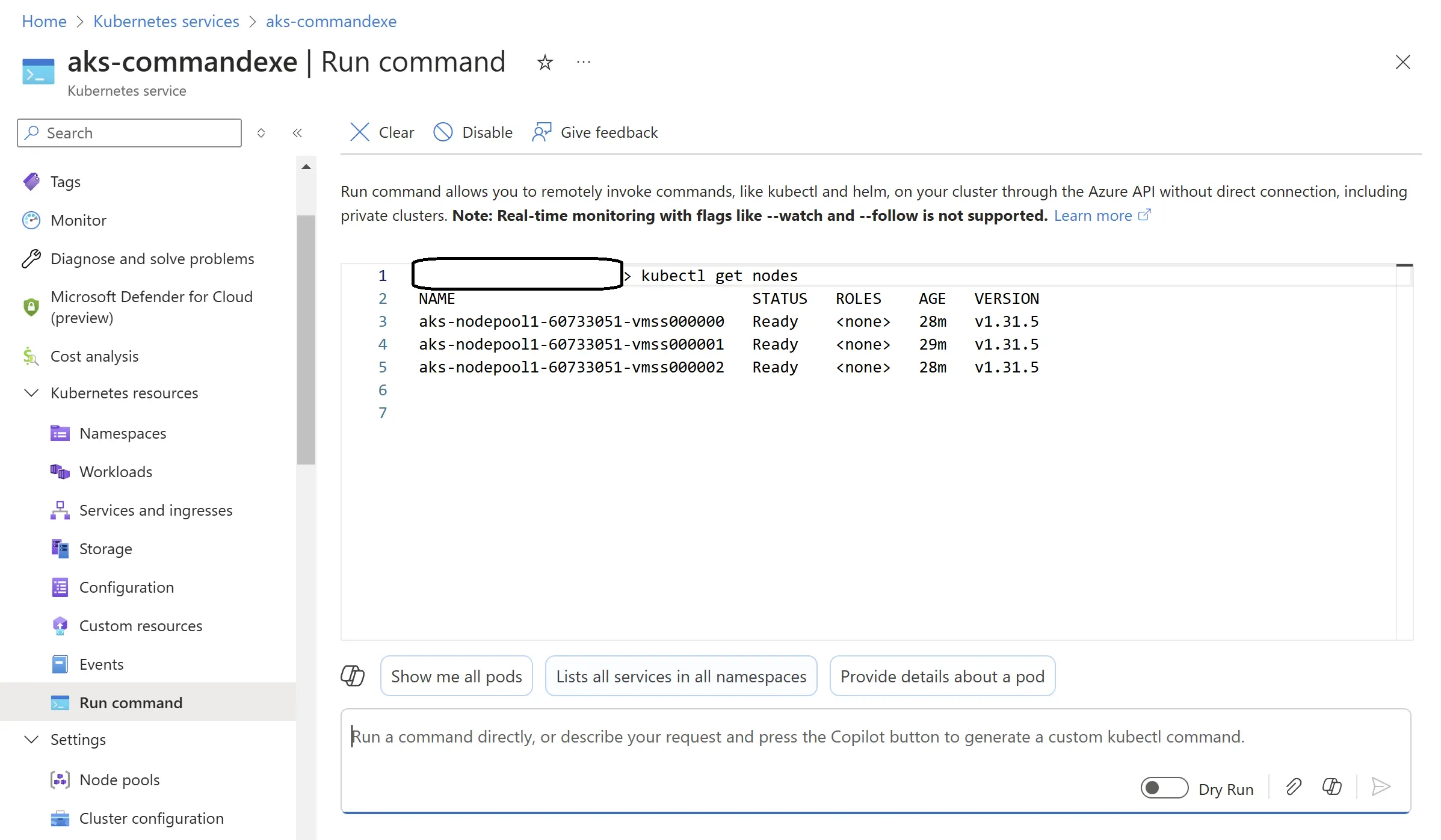
また、こういう用途をやりたいけどコマンドが不明瞭な場合は、実行したいことを入力欄に入れてCopilot のマークを実行するとCopilot で検索することができます。コマンドのオプションに悩んだときなどに利用すると便利です。
リソースのクリーンアップ
動作確認後、Azure リソースを削除します。
# リソースグループを削除する
az group delete --name rg-akscommandexe
まとめ
- Azure CLI ではaz aks command invoke でプライベートなAKS クラスターにもkubectl やhelm コマンド、シェルスクリプトを実行できる
- ちょっとしたコマンドであれば確認用のAzure リソースが不要となるため、Azure 利用料を削減できる